Why Back Up Your Android Apps?
Losing your apps and their data—game progress, documents, settings—is frustrating. A reliable backup prevents this data disaster. While reinstalling apps from the Play Store is easy, restoring your data isn't. This guide shows you how to back up your Android Application Packages (.apk files) and restore them safely. We'll cover several methods, emphasizing security best practices. Don't risk losing your precious app data; learn how to protect it today. For additional resources on APK management, see this helpful guide: APK Resources.
Method 1: Android's Built-in Backup System
Android offers a built-in backup system. It's easy to use, but it has limitations. Primarily, it backs up app settings, not the .apk file itself. This means you'll regain your preferences, but not your data. Is this enough for you?
Locate Backup Settings: Go to your phone's Settings > System (or Accounts). Find "Backup," "Backup and Restore," or a similar option. The exact location varies by Android version.
Enable Backup: Toggle the "Back up my data" switch to ON. This ensures your app settings are saved.
Understand the Limitations: This only saves app settings, not your app data (game progress, documents within apps, etc.). It's a partial, not a complete, backup.
Method 2: Third-Party Backup Apps
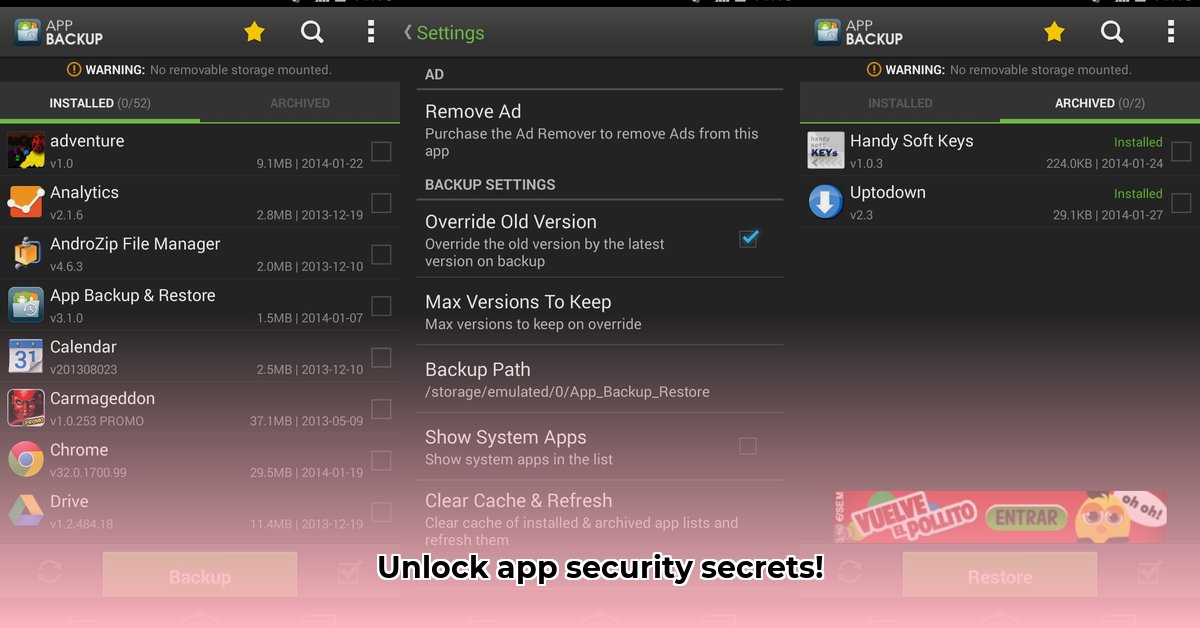
Many apps offer comprehensive app backups, including the .apk files. This provides a more complete solution than Android's built-in system. However, choose carefully. Download only from reputable app stores (like Google Play Store) and read the permissions carefully. A robust backup solution can provide a much needed safety net.
Selecting a Reputable App: Prioritize apps with positive reviews regarding security and reliability. Check for end-to-end encryption. Is data security a priority for you? Then look for privacy policies and reviews that address these important details.
(Note: specific app recommendations are omitted to avoid endorsement and maintain objectivity. Always vet any app thoroughly before granting access to your data.)
Method 3: ADB (Android Debug Bridge) - For Advanced Users
This method offers maximum control but requires technical expertise and a computer. It's more complex and carries a higher risk of damaging your phone if misused. Only undertake this if you are comfortable with command-line interfaces.
Enable Developer Options & USB Debugging: On your phone, go to Settings > About Phone. Tap "Build Number" seven times until "Developer options" appears. Enable "USB debugging" under Developer Options.
Install ADB: Download the Android SDK Platform-Tools (from the official Android developer website), extract the files, and open a command prompt or terminal window.
Connect Your Phone: Connect your device to your computer via USB.
Execute the ADB Backup Command: In the command prompt, navigate to the ADB folder and use the
adb backupcommand (with appropriate parameters) to create a backup. This is an advanced process. Plenty of online resources explain the steps. Complete research is essential.Cautions: ADB is powerful, but misuse can cause problems. If you're unfamiliar with command-line interfaces, avoid this method.
Restoring Your App Backups
Restoring apps depends on the method used. Third-party apps usually provide straightforward instructions. Android's built-in system restores settings automatically upon reinstalling apps. For ADB backups, use the adb restore command using your backed-up file. Always verify the backup file to prevent errors.
Security Considerations: Protecting Your Data
Security is crucial when backing up apps. Never compromise on this aspect of your app backup plan.
Encryption: For third-party apps, prioritize end-to-end encryption. Only you should be able to access your backed-up data.
App Permissions: Scrutinize an app's requested permissions. If a backup app requests access beyond what’s necessary (like contacts or location), it's a red flag.
Download Source: Download apps solely from official app stores like the Google Play Store. Avoid unofficial sources; they may contain malware. Is it worth risking it?
Conclusion
Regular backups safeguard you from data loss. Combine a suitable backup method with strong security practices to protect your valuable app data. Remember, regular backups are critical for ensuring data security. Don't wait until it's too late; implement a backup strategy today.
⭐⭐⭐⭐☆ (4.8)
Download via Link 1
Download via Link 2
Last updated: Sunday, May 11, 2025